
Support
The Support panel of the Management UI lets you create support tickets for the Bosch IoT Rollouts support team and follow your tickets, without leaving the console. The tickets are created in the Bosch IoT Rollouts Support Portal and handled there by the support team.
Open the Support panel
- Navigate to the page your request is about, for example the rollout that does not start (see the tip below).
- In the left navigation, click Support at the bottom. It is there on every page.
The Support panel opens on the right. It has two tabs:
- Create Ticket: report a new request to the support team.
- My Tickets: see your tickets and their status.
Click the  Close icon in the panel's top right corner to close it.
TIP
Open the panel from the page your request is about, for example the rollout, action, target or target filter that has the problem. The ticket records the address of that page as Current URL (see Auto-populated information). The address points to the exact entity, so the support team can open it directly.
Create a ticket
Click the Create Ticket tab.
Fill in the form:
Field Description Reporter The e-mail address of the person the ticket is for. Only the user with exactly this e-mail address can view the ticket in the Support Portal. It is filled in with the e-mail address you are logged in with. You can change it, for example to raise a ticket on behalf of a colleague. Required; it must be a valid e-mail address. Request Type What the request is about (see Request types). Default: Ask a question. Priority Highest, High, Medium, Low or Lowest. Default: Medium. Summary A short title for the request. Required, at most 255 characters. Description What happened, what you expected and the steps to reproduce it. Required. Attachments Optional files, for example screenshots or log files. Drop them on Drop files here or click to add, or click it to select them. You can add several files, each of at most 10 MB; a larger file is not added. Click the  Remove file icon to remove a file.
WARNING
Check the Reporter before you submit the ticket. Only the user who logs in to the Bosch IoT Rollouts Support Portal with exactly this e-mail address can view the ticket there, so it must be the e-mail address of your Support Portal login.
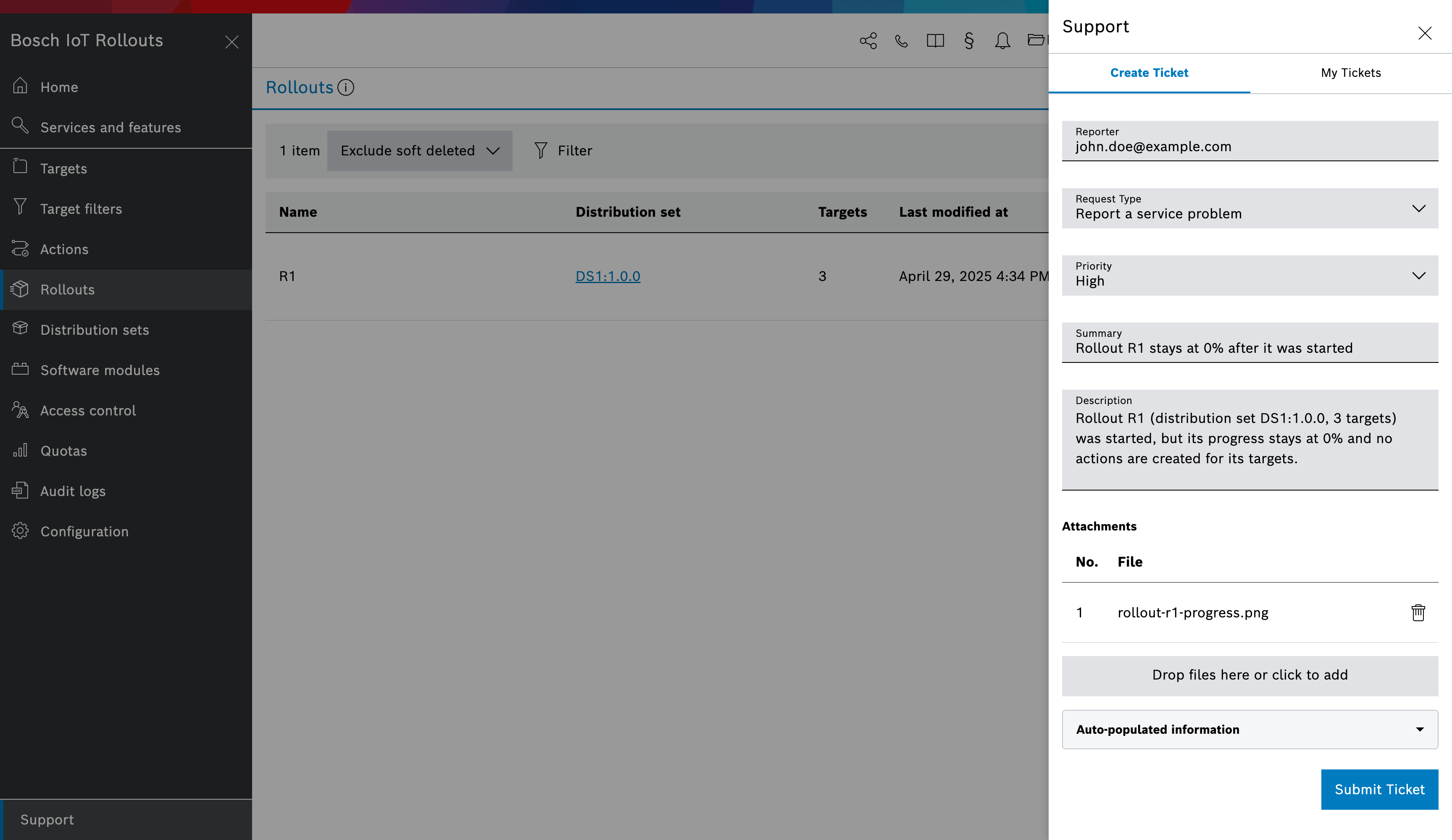
Optionally, expand Auto-populated information to check the details that are added to the ticket (see Auto-populated information).
Click Submit Ticket.
If Summary or Description is empty, the form shows Summary is required or Description is required under the field and does not submit the ticket.
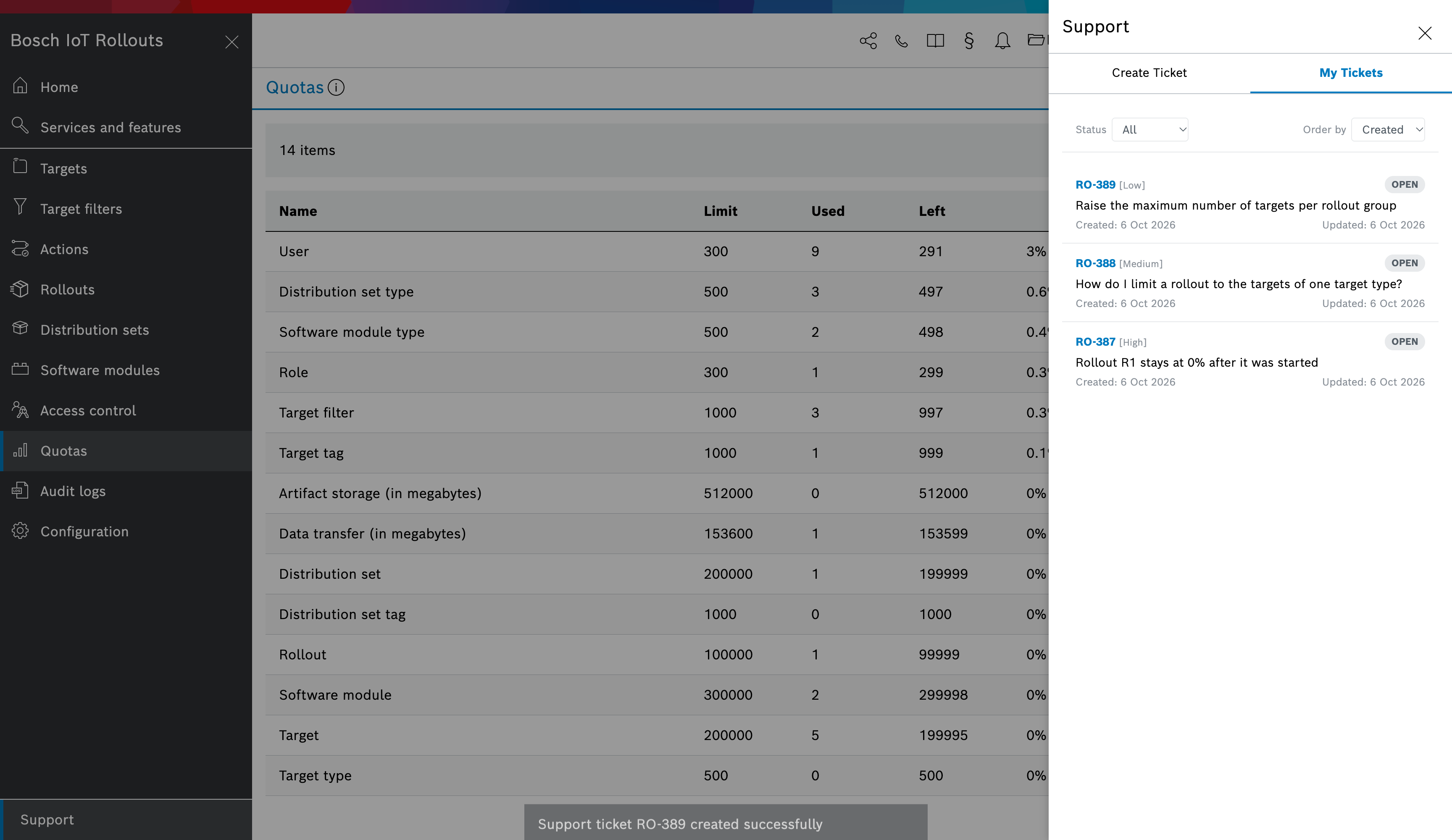
When the ticket is created, the message Support ticket <KEY> created successfully shows the ticket's key (for example RO-389). The form is cleared and the panel switches to the My Tickets tab, where the new ticket is listed first.
The attachments are uploaded after the ticket is created. If the upload fails, the message Failed to upload attachments. is shown: the ticket exists without them. Open it in the Support Portal (see View your tickets) and add the files there.
Request types
| Request type | Use it for |
|---|---|
| Ask a question | Questions about how to use Bosch IoT Rollouts, for example how to set up a target filter or a rollout. |
| Report a service problem | Something does not work as expected, for example an error in the Management UI or the APIs, or a rollout that does not start. |
| Request a change | A change to your tenant that the support team makes for you, for example a higher quota or a tenant configuration such as logins with multi-factor authentication only. |
Auto-populated information
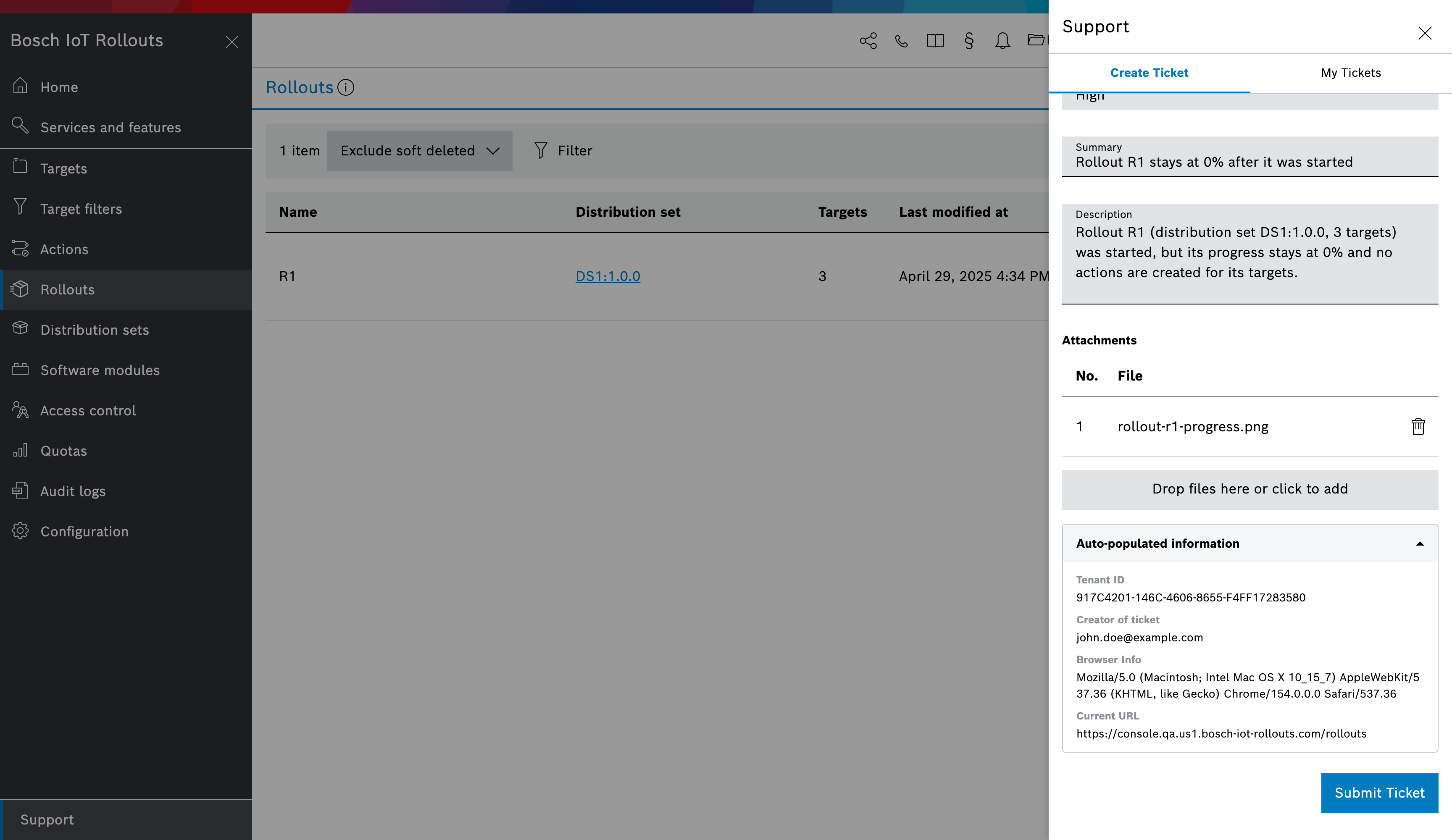
The Auto-populated information section shows the details the Management UI adds to every ticket, so you don't have to look them up. You cannot edit them.
| Field | Content |
|---|---|
| Tenant ID | The ID of the tenant you are logged in to. |
| Creator of ticket | The e-mail address you are logged in with. It cannot be changed. It differs from the Reporter when you raise a ticket on behalf of someone else. The creator is kept in the ticket as information only: only the reporter can view the ticket in the Support Portal. |
| Browser Info | The browser and operating system you use (the browser's user agent). |
| Current URL | The address of the page on which you opened the Support panel. It is a hint for the support team: it contains the exact location of the entity the request is about, for example a rollout, an action, a target or a target filter, so they can open it directly. |
View your tickets
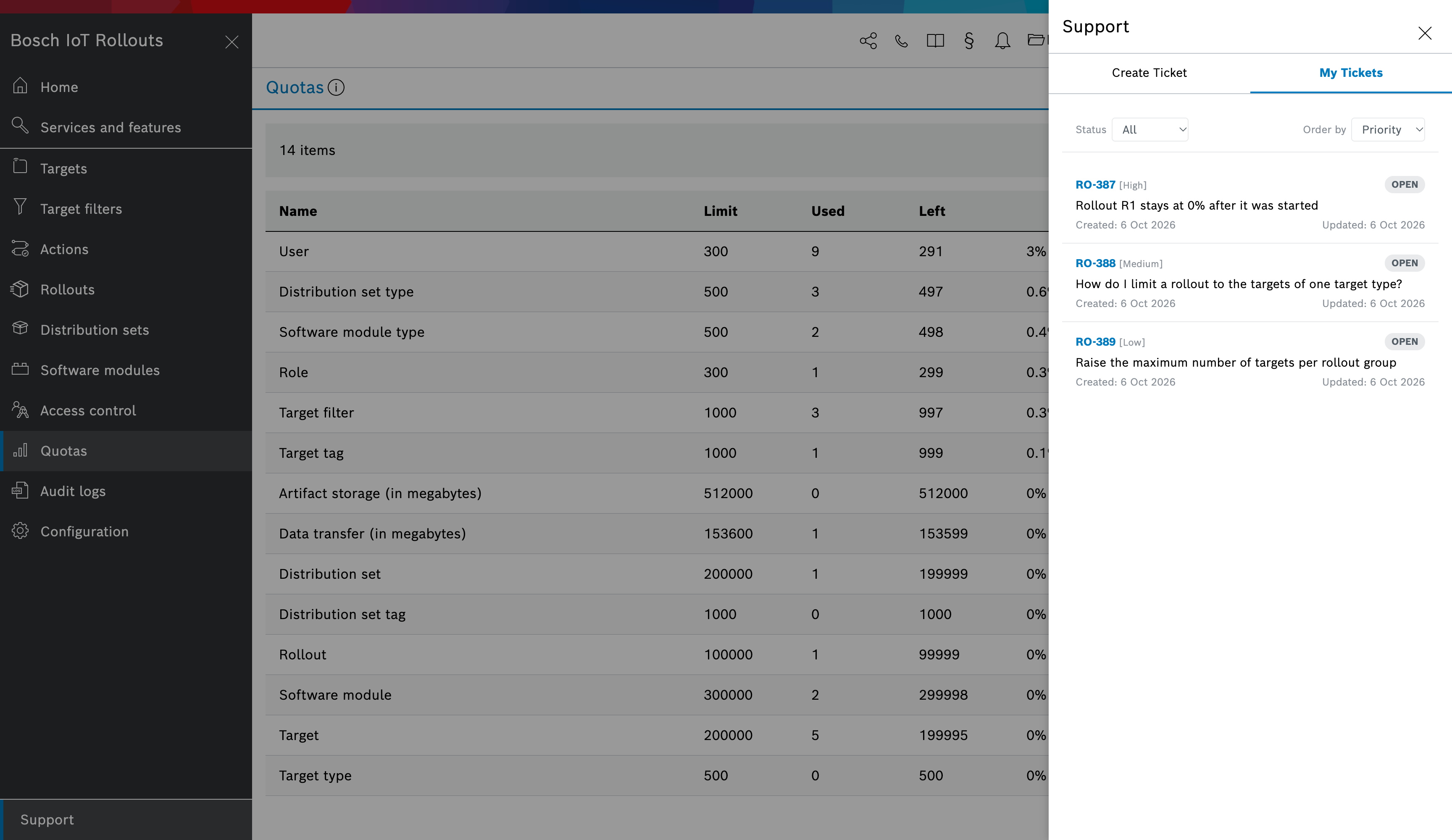
The My Tickets tab lists your support tickets. Each ticket shows:
- its key, for example RO-387, followed by its priority in brackets;
- its status, for example OPEN;
- its summary;
- the dates it was created and last updated.
Click a ticket's key to open the ticket in the Bosch IoT Rollouts Support Portal in a new browser tab. There you can read the support team's answers, add comments and add attachments. To view the ticket there, log in to the Support Portal with the ticket's Reporter e-mail address.
Use the controls at the top of the list to find a ticket:
- Status: All (default), Open or Resolved.
- Order by: Created (default), Updated or Priority.
The list shows 10 tickets per page. When there are more, page numbers below the list move between the pages. With no tickets yet, the tab shows No tickets submitted yet.
Other ways to contact support
The  Contact icon in the header of the Management UI offers:
- Support system: opens the Bosch IoT Rollouts Support Portal in a new tab. You can also create and follow tickets there.
- Contact support: starts an e-mail to the support team at iot-rollouts@bosch-iot-platform.atlassian.net in your mail program.
- Feedback: opens a short survey about Bosch IoT Rollouts.
See also Support in the FAQ.