
Add new user
Adding a new user to Bosch IoT Rollouts is pretty straightforward. Follow these steps to add your first new user:
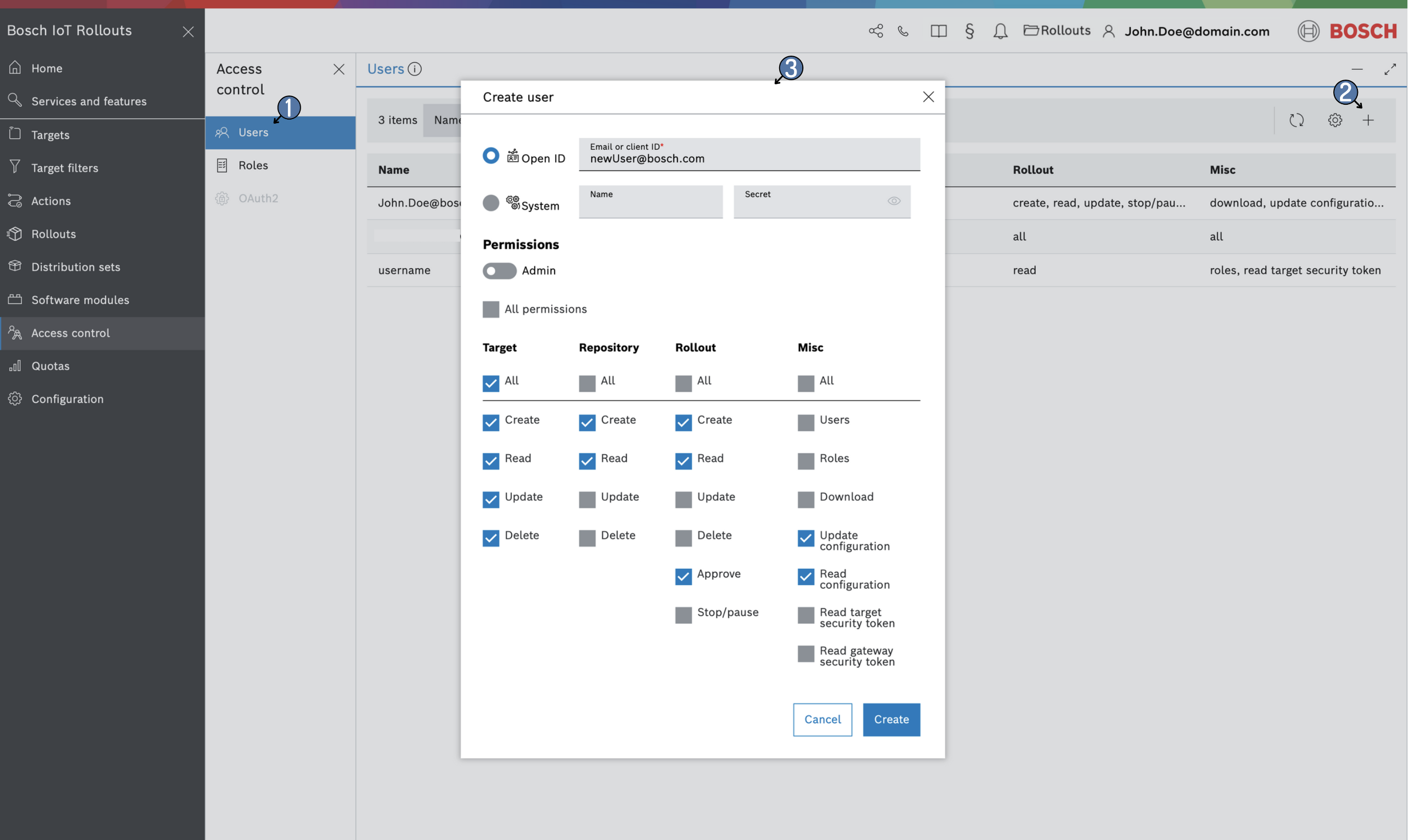
- Select Access control from the left navigation, and then from the Access control options, select Users. Once in the Users view, click the + icon at the right end of its control bar.
- In the Set permissions dialog that opens up:
- Type the new user's email.
- Select the necessary permissions by ticking the appropriate checkboxes.
- If this new user will be of type admin, you can easily enable All permissions by ticking the respective checkbox, which is the first in the section.
- If you want to grant fine-tuned permissions, you can enable or disable each access type (All, Create, Read, Update, and Delete) for each resource, such as Target, Repository, Rollout, and Misc.
- You can also enable or disable All permissions for each resource using the checkbox below its name (e.g., Target, Repository).
- Once you are done, click Create.
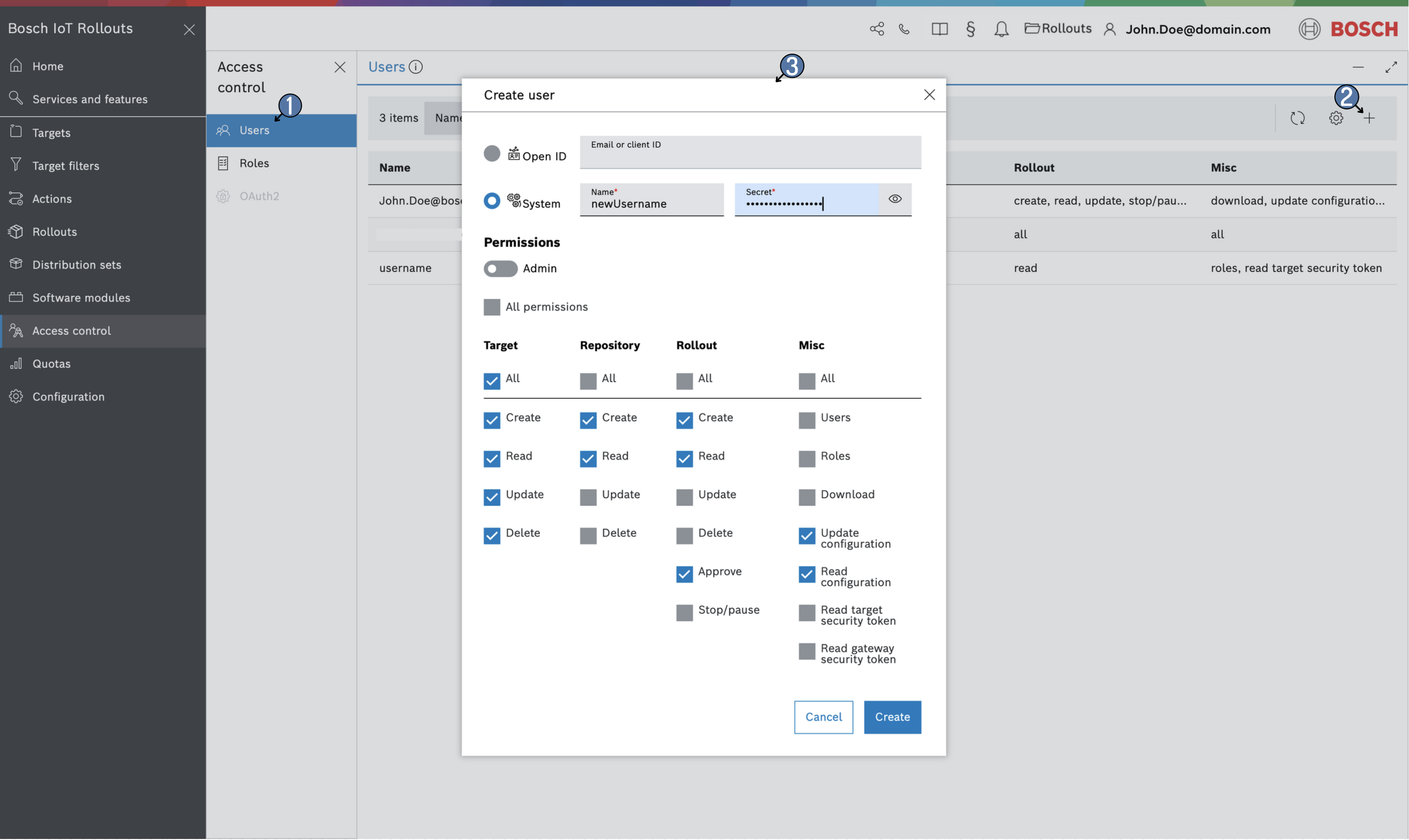
If you want to create a system/technical user, click the system radio button in the create dialog. Type the username and a password that meets the password requirements, and select the needed permissions.
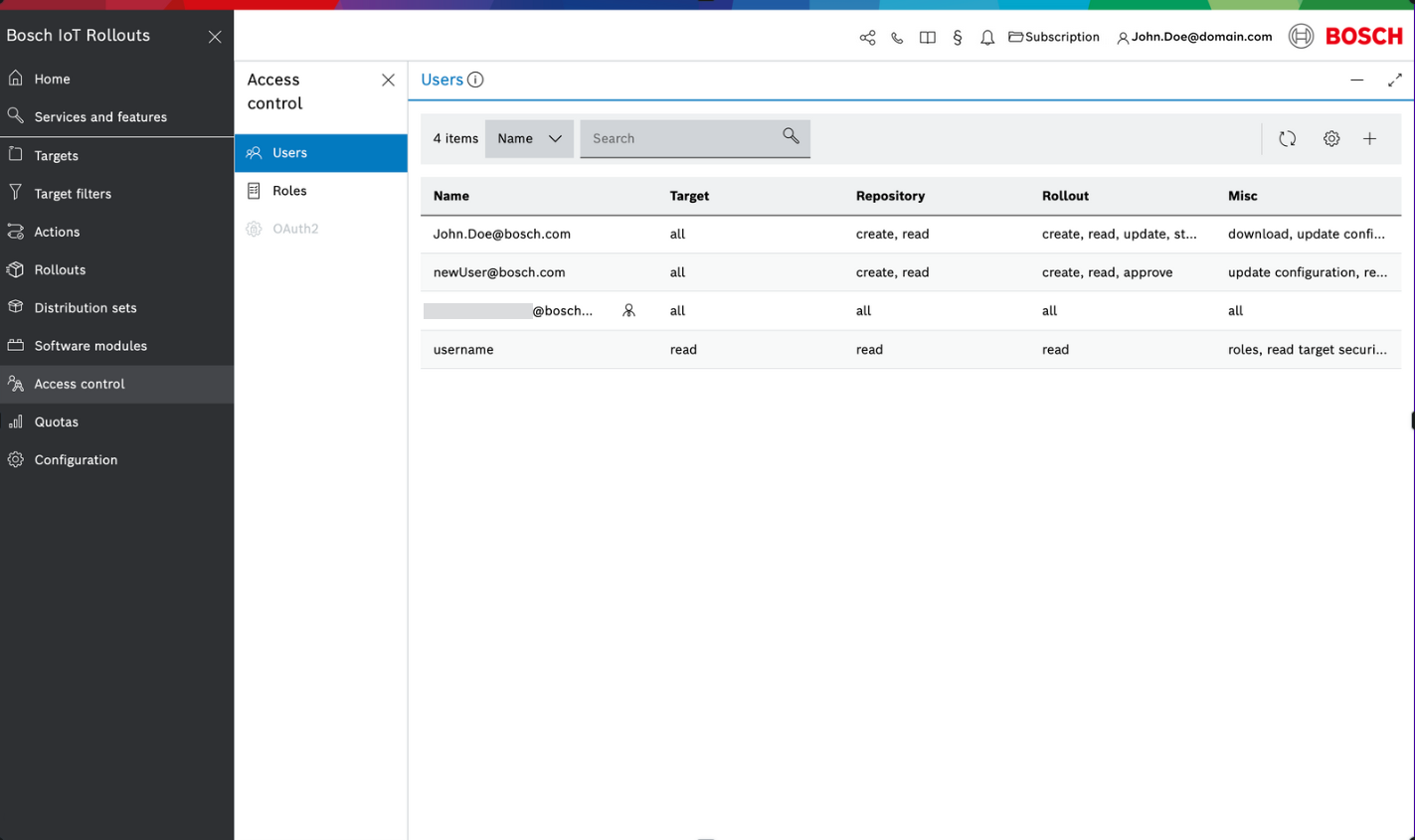
You will then see your new user in the Users list.
You can select it to view the provided permissions in the detailed User view.
Password requirements
The password of a system/technical user must:
- be at least 8 characters long,
- contain at least one digit (0–9),
- contain at least one letter (A–Z or a–z).
A password that does not meet these requirements is rejected when you click Create. You can change it later, see Change password of a technical user.