By following the industry-standard protocol for authorization, a client can obtain an access token via Client Credentials Grant flow and authenticate your application when calling the Bosch IoT Rollouts APIs.
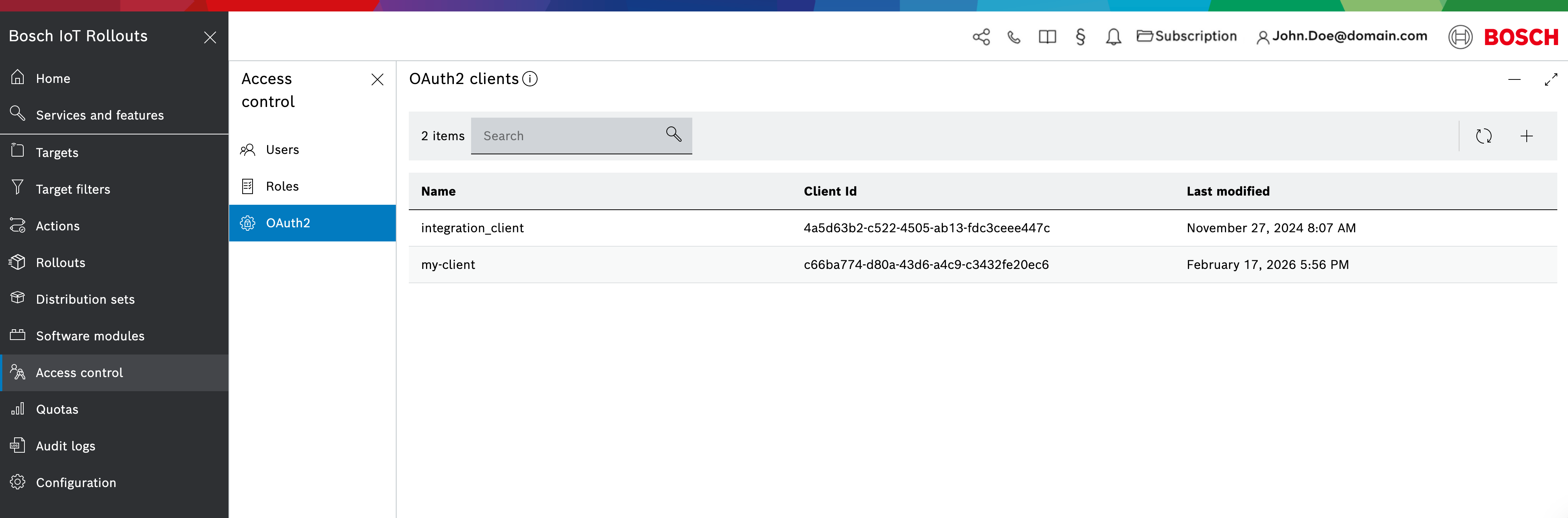
Listing OAuth2 Clients
When you select Access control from the main navigation, you will enter the Access control view. Select OAuth2 from the menu.
It provides a list of all OAuth2 clients.
Each client is listed with their name and client id.
View OAuth2 Client Details
Navigate to Access control using the main menu. Once there, select OAuth2
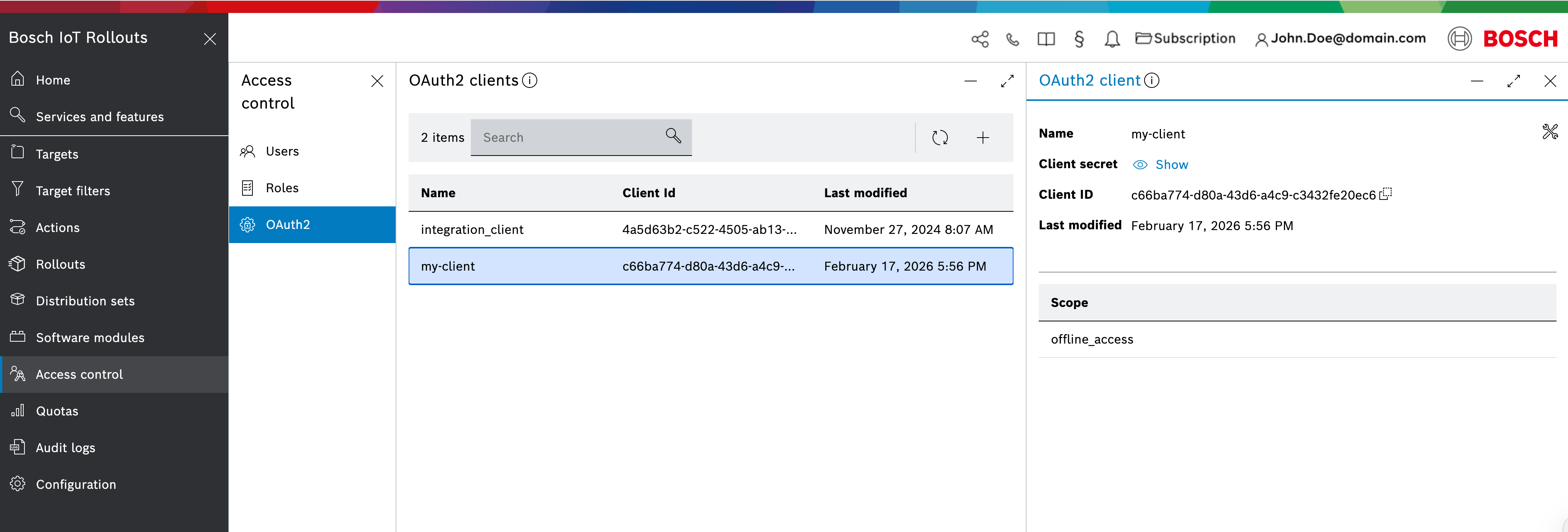
You can view each OAuth2 client's details by selecting the client from the list. This will open the OAuth2 client view.
In the OAuth2 client view, you will see the client name, secret, ID, and scopes.
You can copy the client ID by clicking the Copy to clipboard icon on its right. If you click on the Client secret Show link, you can see and copy it.
Creating an OAuth2 Client
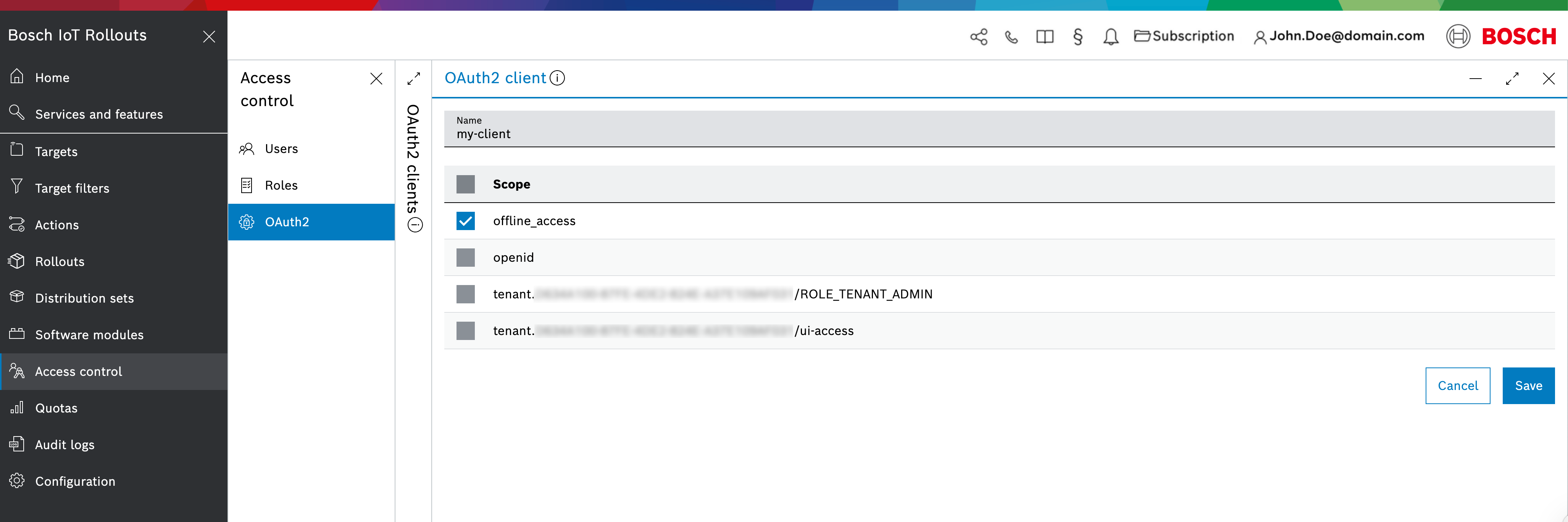
From the main navigation, select Access control to open the Access control view, then choose OAuth2 from the menu.
Once in the OAuth2 view,
- click the
+icon at the right end of its control bar. - Type the OAUth2 client name
- Select scopes
- Click Save
Edit an OAuth2 Client
Navigate to Access control in the main menu, then click OAuth2.
Once in the OAuth2 view,
- Select the client you want to edit
- Click the OAuth2 client actions
 icon in the top right area of the OAuth2 client details
 - Click Edit from the drop-down menu
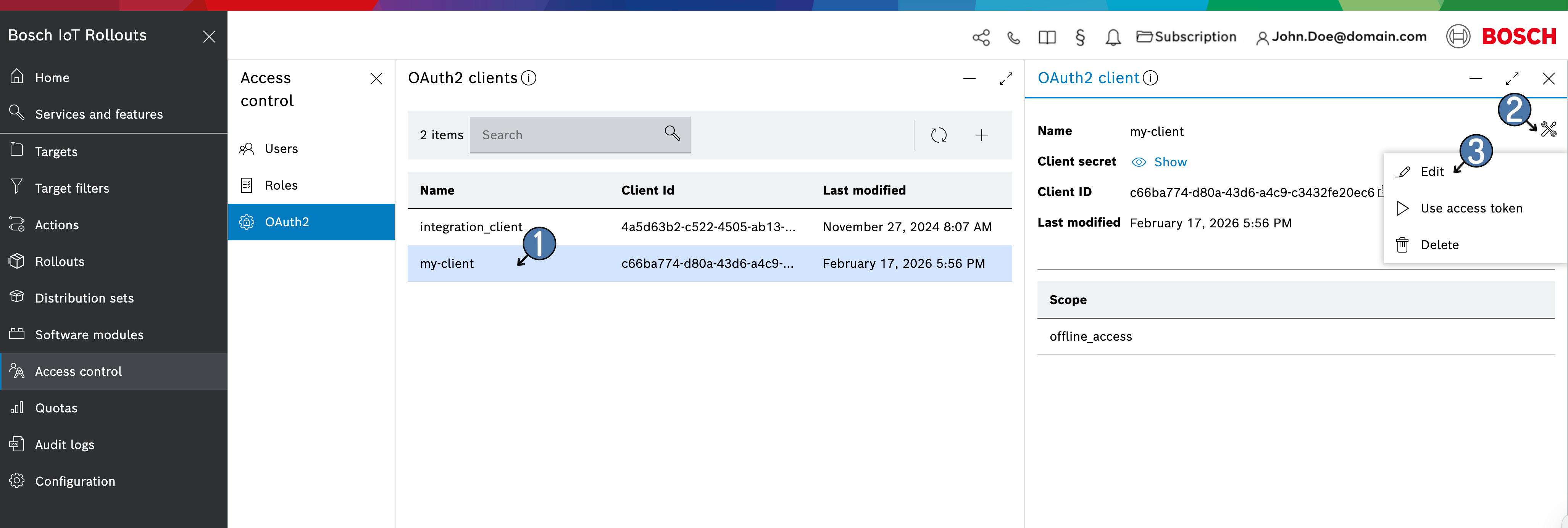
After completing the steps above, edit the client details and click Save.
Grant permissions to an OAuth2 Client
Navigate to Access control in the main menu, then click OAuth2.
Once in the OAuth2 view,
- Select the client you want to fetch a token with
- Copy the Client ID
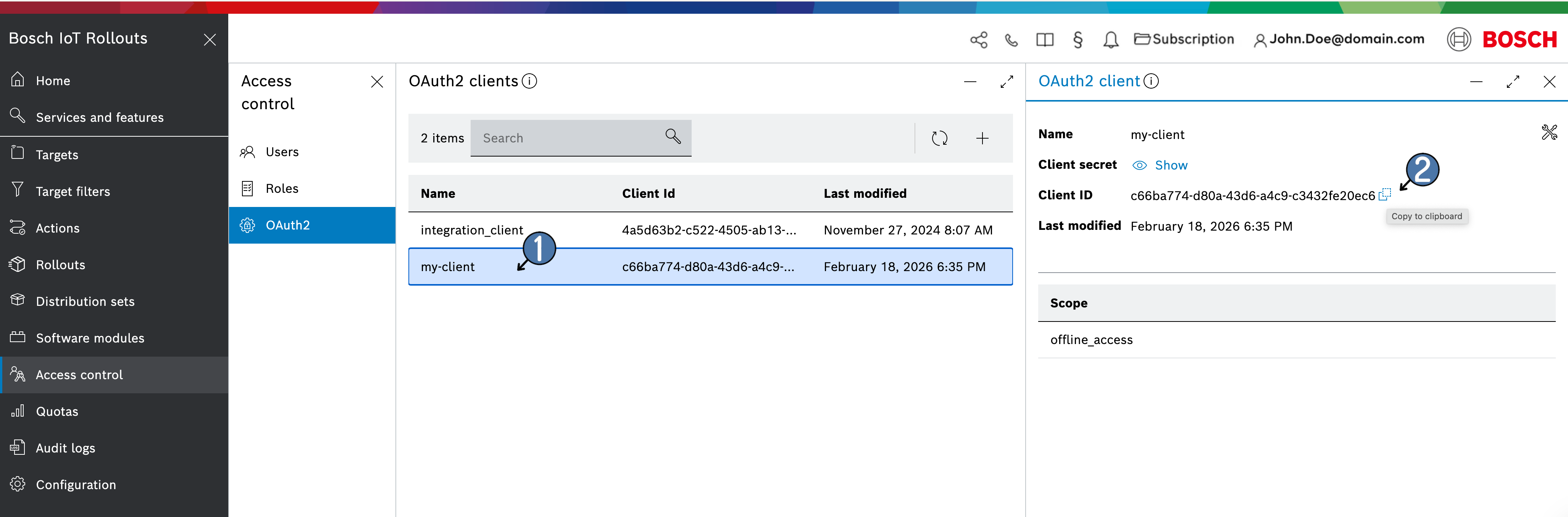
- Create a user with the
OpenIDType and set the client ID as the username.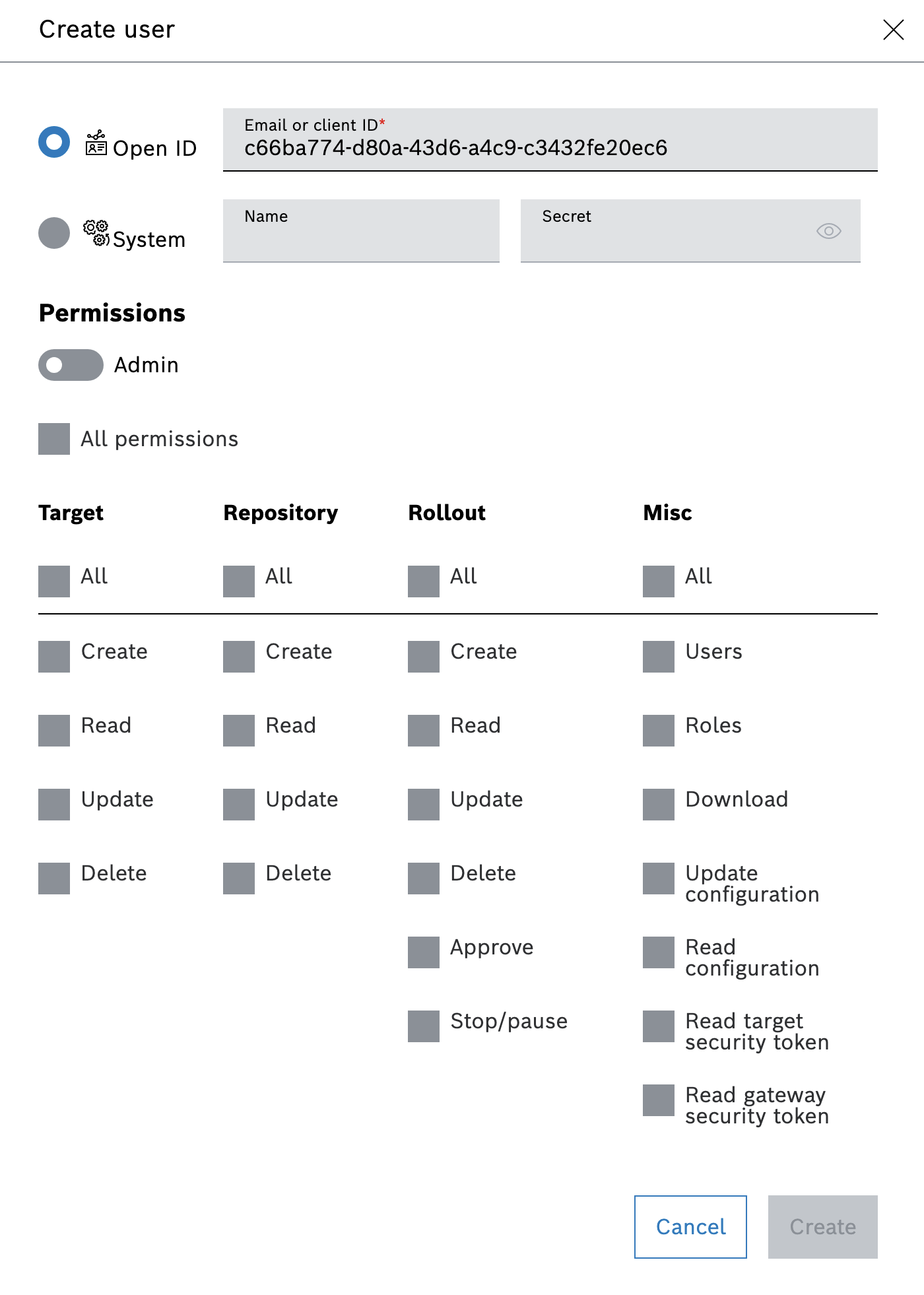
- Assign the appropriate permissions to this user following the procedure outlined in Add New User.
Use an OAuth2 client to fetch an access token
Navigate to Access control in the main menu, then click OAuth2.
Once in the OAuth2 view,
- Select the client you want to fetch a token with
- Click the OAuth2 client actions icon in the top right area of the OAuth2 client details
- Click Use access token from the drop-down menu
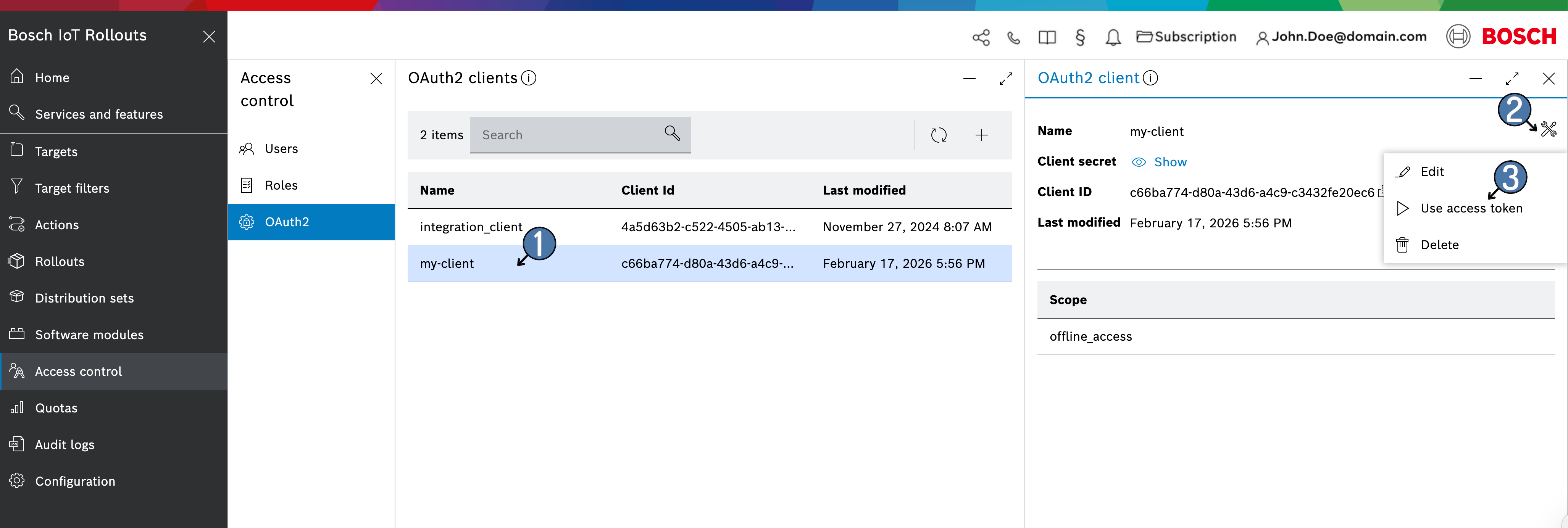
Once entering the Use access token view, you can
- Copy the generated test access token and use it for manually testing a service API call
- Find examples of how to
- Fetch an access token for your client using an HTTP request (via HTTPS, cURL, jQuery, JavaScript)
- Use the obtained access token to access the Bosch IoT Rollouts Service API (via cURL, Spring)
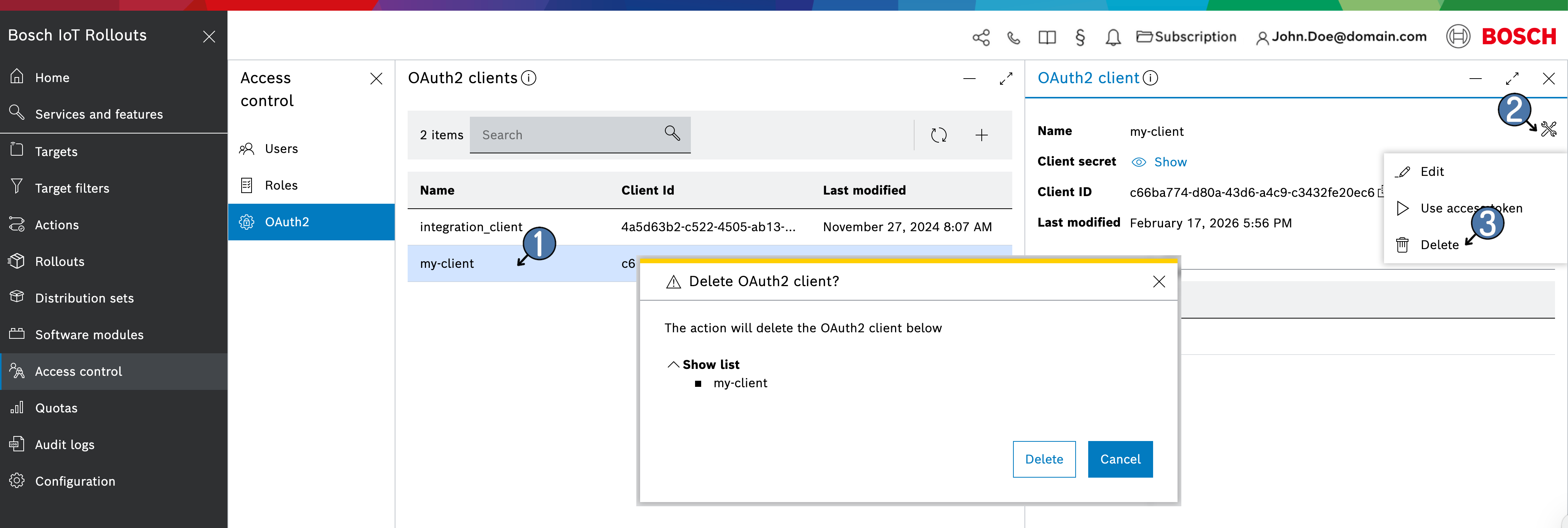
Delete an OAuth2 Client
Navigate to Access control in the main menu, then click OAuth2.
Once in the OAuth2 view,
- Select the client you want to delete
- Click the OAuth2 client actions icon in the top right area of the OAuth2 client details
- Click Delete from the drop-down menu
- Click the Delete button on the Delete OAuth2 client confirmation dialog