Target Grouping lets you organize your Targets into named groups so they are easier to find, filter, and manage. This guide explains what groups are and how to work with them in the Bosch IoT Rollouts UI.
What a group is
A group is a label that lives directly on a device. Each device can belong to at most one group at a time. Assigning a device to a new group replaces whatever group it had before.
Because the group is stored on the device itself, a group only "exists" as long as at least one device is assigned to it. There is no separate, empty group object you can create and fill later - you always create a group together with the devices that should go into it. As soon as the last device leaves a group, that group disappears from the list.
Fast
Key advantages
Faster than tags
Because the group is stored directly on the device record, searching and filtering by group is significantly faster than searching by tag. Tags are kept separately and have to be cross-referenced at search time, which is slower - especially across a large fleet. If you need quick, frequent filtering of devices, a group is the better choice.
One group, one source of truth
A device can carry many tags at once, but it has exactly one group. That makes a group a clear, unambiguous answer to "where does this device belong?" - useful for organizing your fleet into clean, non-overlapping sets.
Parent/child subgrouping
Group names can express a hierarchy using a slash, such as Parent and Parent/Child. Today the UI shows each group on its own, but the underlying REST API can already search a parent group together with all of its subgroups. As the feature evolves, the UI will surface this hierarchy directly.
Groups vs. tags at a glance
Group | Tag | |
|---|---|---|
How many per device | Exactly one | Many |
Search/filter speed | Fast (stored on the device) | Slower (stored separately) |
Hierarchy / subgroups | Yes (Parent/Child) | No |
Best for | A device's single "home" in your fleet | Flexible, overlapping labels |
Groups sub-menu
Viewing groups
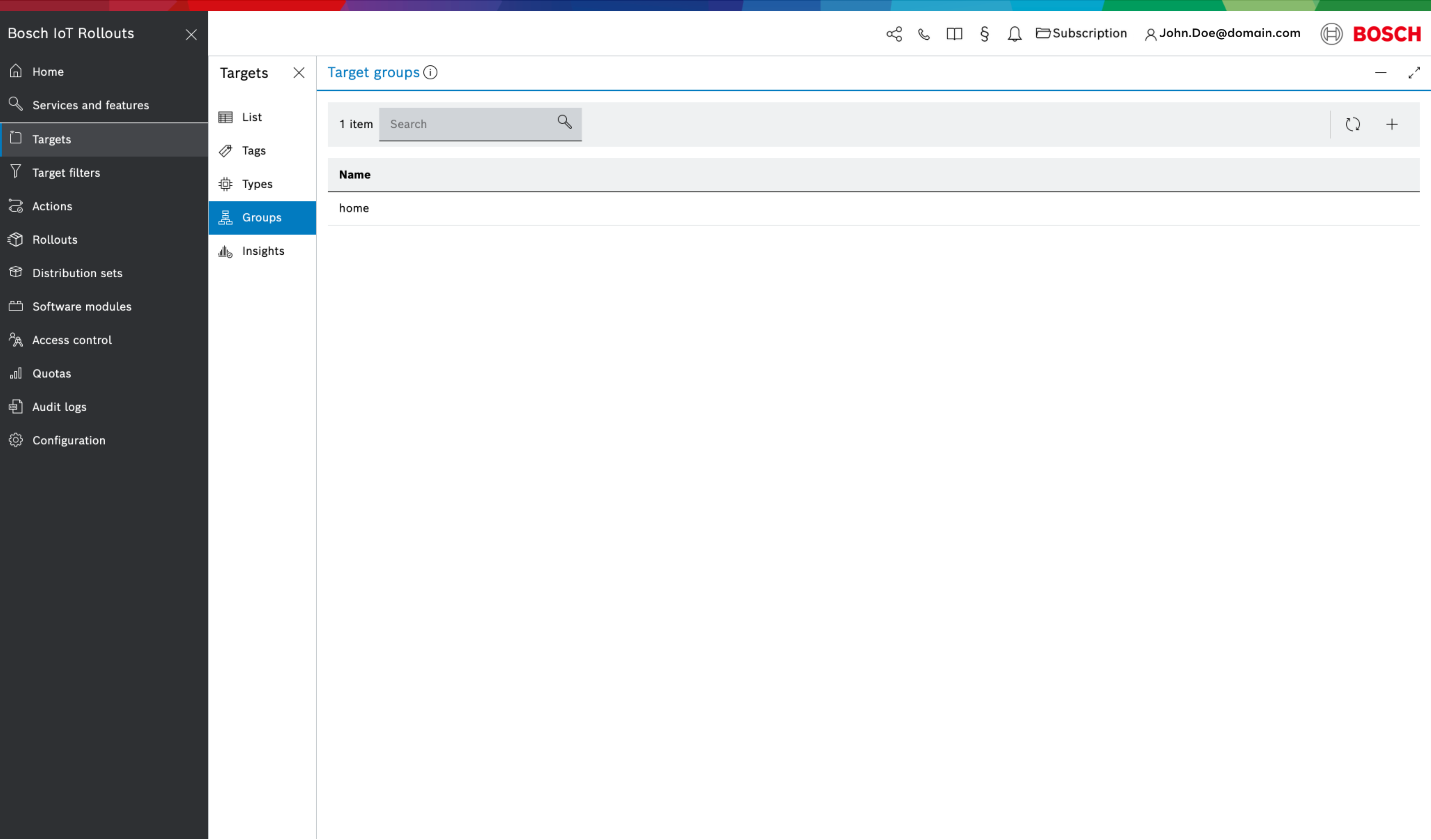
Select Targets → Groups to see every group that currently exists, along with a search box to find a specific group by name.
Creating a group
Click the + button above the list to open the Create Target Group dialog.
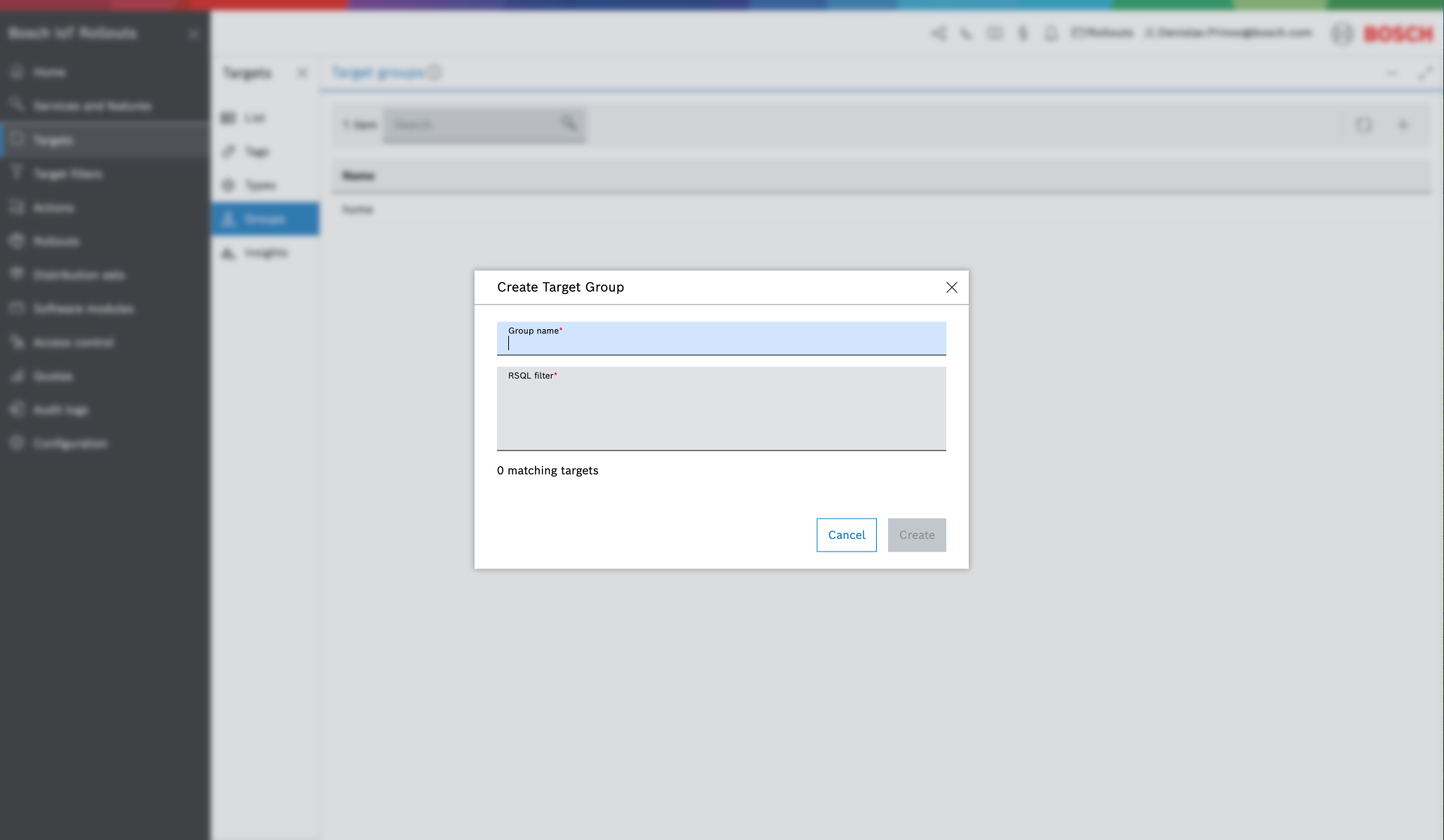
Fill in:
- Group name - the name of the new group.
- RSQL filter - a filter expression that selects which devices should be placed in the group. Because a group cannot exist without devices, this filter is required.
As you type the filter, the dialog shows how many matching targets it currently selects, so you can confirm you are about to group the devices you expect. Click Create to create the group and assign all matching devices to it.
The group details blade
Click a group in the list to open its details blade on the right. It shows the group Name and the Target count (how many devices are currently in the group).
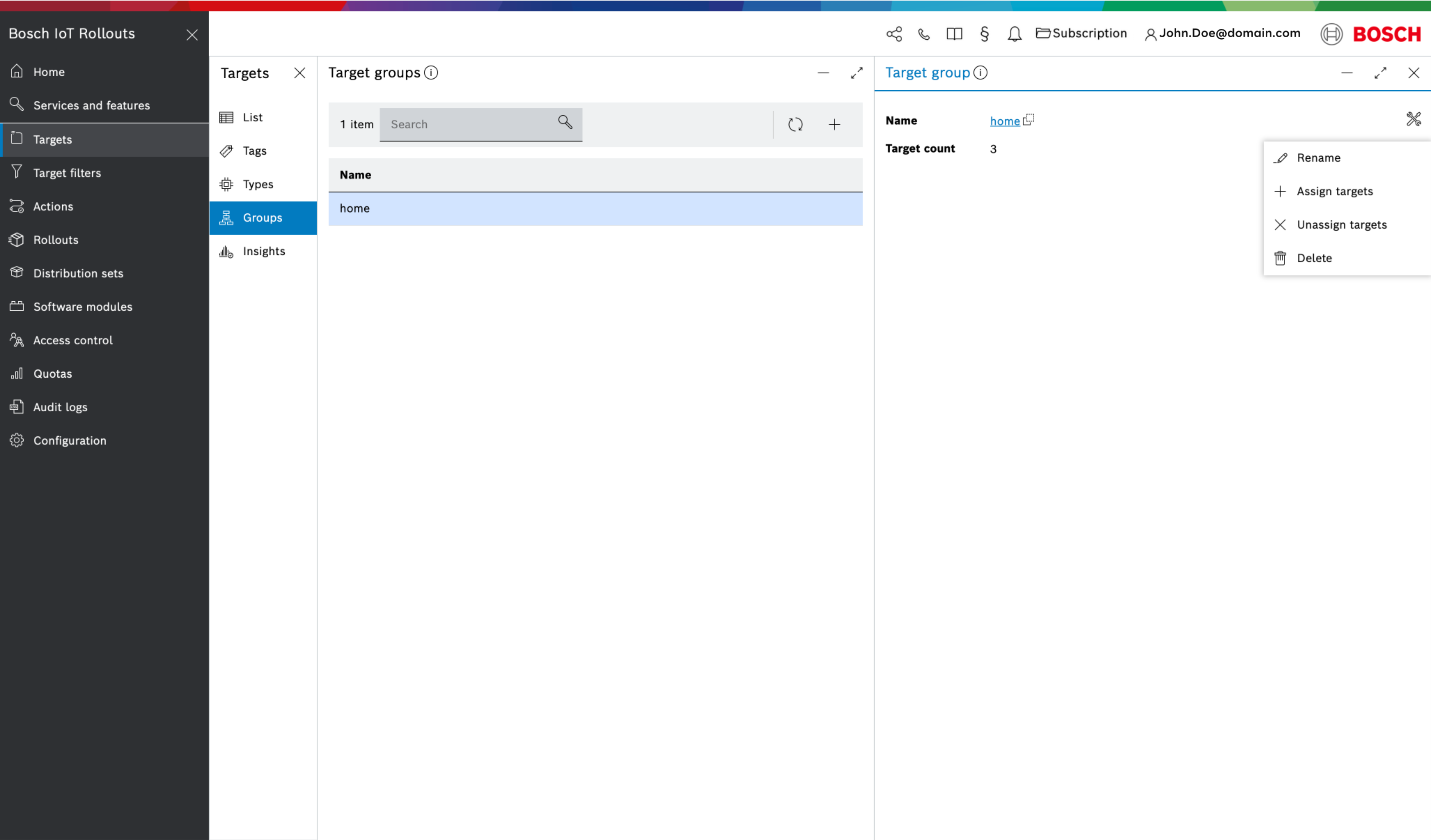
The actions menu (top-right of the blade) offers:
- Rename - change the group's name.
- Assign targets - add more devices to the group.
- Unassign targets - remove devices from the group.
- Delete - remove the group (this unassigns the group from all its devices).
List sub-menu
Viewing targets and their groups
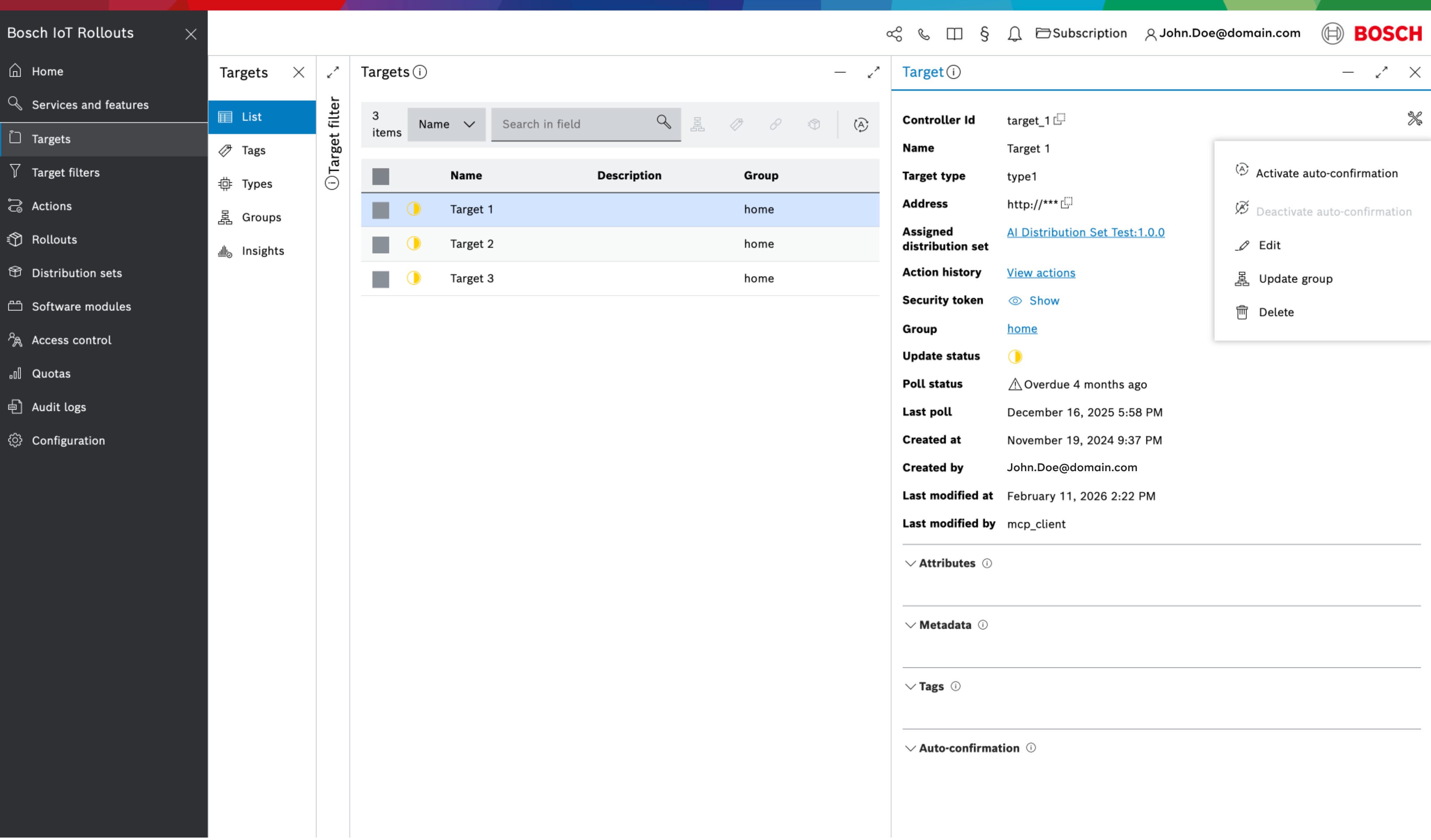
Select Targets → List to see all targets. The list shows each target's details, and when you open a target's details blade on the right you can see the Group it belongs to.
Grouping targets from the list
Select one or more targets in the list, then use the group button above the list to assign them all to a group at once.
Updating the group of a single target
Open a target's details blade, then use its actions menu and choose Update group.
The Update Group dialog
Both "group selected targets" and "Update group" open the same dialog. It has a single dropdown where you choose:
- An existing group - the selected targets are assigned to that group.
- <none> - the selected targets are removed from their group (ungrouped).
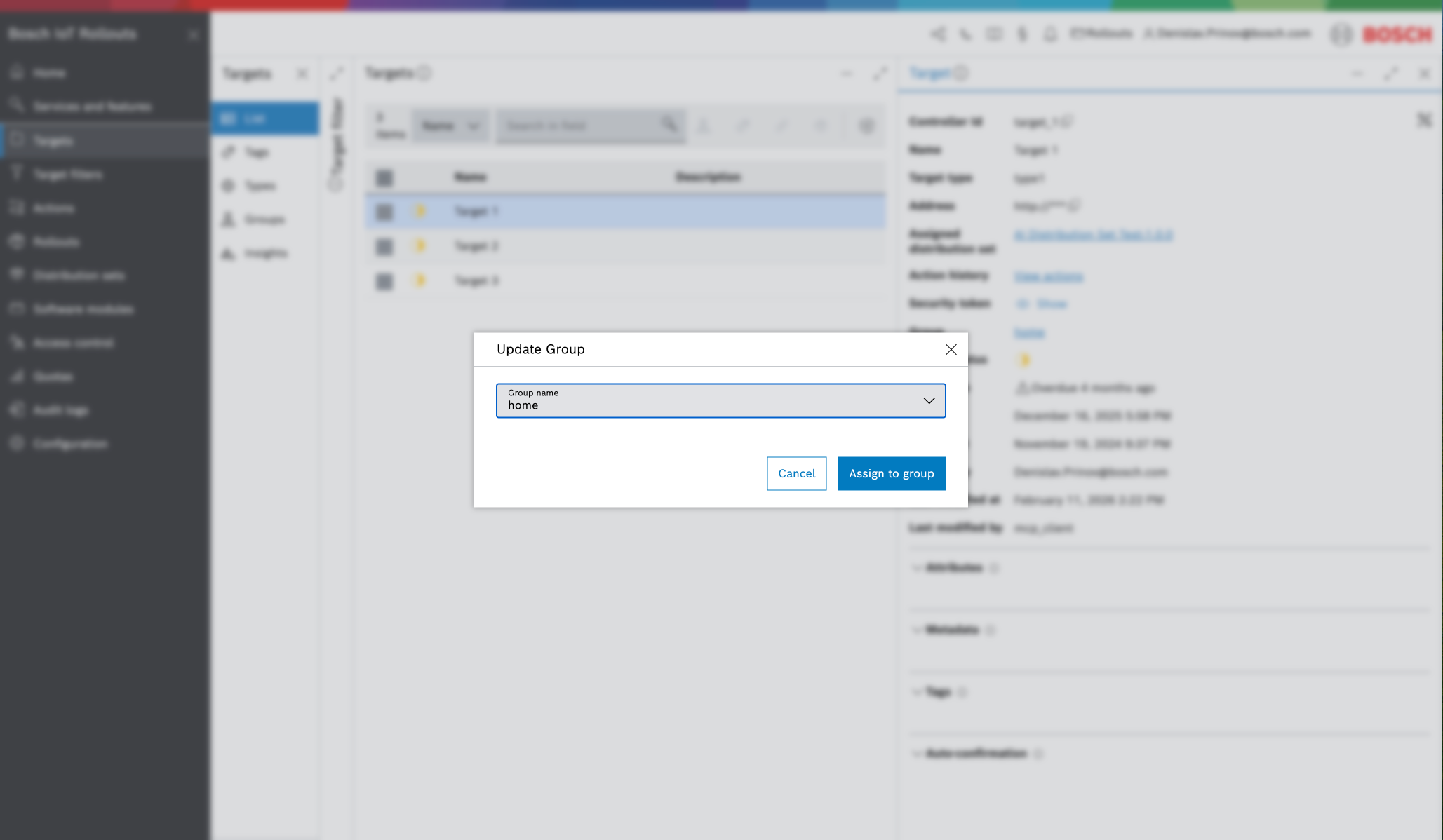
Confirm with Assign to group to apply the change.
A note on subgroups and hierarchy
Group names can use a slash to express a hierarchy, for example Parent and Parent/Child. In the UI, however, a group always shows only the devices assigned directly to that exact group name. If you open Parent, you will not see the devices that belong to Parent/Child - they are listed under Parent/Child.
If you need a hierarchical view - for example, "all devices in Parent and all of its subgroups" - that capability is currently available through the Target Grouping REST API, which supports searching across a group together with its subgroups. The UI's hierarchy-aware view is planned for a future update.